How do you set up voice dictation for AI prompts?
Install SpeakoFlow, pick a speech model during first-run setup, and learn one shortcut. The rest is optional.
| Action | Windows | macOS | Linux |
|---|---|---|---|
| Dictate | Left Ctrl + Left Win | Fn | Ctrl + Space |
| Dictate hands-free | Left Ctrl + Left Win + Space | Fn + Space | Turn off Hold to talk |
| Dictate and clean up | Left Ctrl + Left Win + Shift | Fn + Shift | Ctrl + Shift + Space |
| Ask about selected text | Left Ctrl + Left Alt | Fn + Ctrl | Ctrl + Alt + Space |
| Cancel a recording | Esc | Esc | Not available yet |
The dictate-and-clean-up row only works while AI cleanup is on and set to its own shortcut. Hands-free is new in 2.1.0 and suits long prompts: while you hold the dictation keys, press Space and let go, and it keeps listening until you press the dictation keys again or hit Esc.
- Download SpeakoFlow 2.1.0 for Windows, macOS or Linux from the download page. It is free under the MIT license and needs no account.
- Pick a speech model in the first-run setup. Parakeet is the default for English. Nemotron covers 28 languages with automatic detection, and Whisper covers 99.
- Learn the dictation keys for your platform (table above). Hold them while you talk, or go hands-free for long prompts.
- Add your project's names to the Dictionary (next section).
- Decide on cleanup. Leave it off to send exactly what you said, or turn it on with its own shortcut.
Can you dictate prompts into ChatGPT, Claude, Cursor and Claude Code?
Yes. A system-wide dictation app types into whichever text field has focus, so it works in any AI tool without a plugin. You click into the box, hold the keys, talk, and let go.
| Tool | Click into | Good for |
|---|---|---|
| ChatGPT, Claude (web or desktop app) | The message box | Long questions, drafts, pasted context plus a spoken instruction |
| Cursor, VS Code with an AI extension | The chat or agent panel, or the inline edit box | Describing a change across several files |
| Claude Code, Codex CLI or any terminal agent | The terminal window, at the agent's prompt | Task descriptions, follow-up corrections |
While you talk, the recording pill can show the words as they come in, so you can watch a long prompt form. Read it once before you press Enter.
Why speak a prompt instead of typing it?
Because you say more. The answer you get back depends on the context you give, and speaking removes the urge to trim it.
A typed prompt is short because typing it is work. You drop the file name, the constraint and the thing you already tried, then spend three follow-up messages adding them back. Speaking the whole request takes about as much effort as speaking half of it, so you tend to include the detail.
Compare a typed prompt with the same request said out loud:
Typed: "fix coupon total bug"
Spoken: "On the checkout page the total doesn't change when I remove a coupon. I think the problem is in the cart totals hook, it only recalculates when items change. Don't touch the payment code. Fix it and add a test that removes a coupon and checks the total."
The spoken one takes a few seconds to say and gives the agent the page, the likely cause, a boundary and a test. If you want your own numbers, the Insights page shows your speaking speed and the time saved compared with typing at 40 words a minute.
How do you get function, file and library names right?
Add them to the Dictionary. A general speech model has never heard your project's names, so it spells them by sound; the Dictionary tells it the spelling you want.
- Dictionary: product names, library names, teammates' names and jargon.
- Text replacements: map what the model writes to what you want, for example "use effect" to
useEffector "dot env" to.env. - Learn words I correct: on Windows, SpeakoFlow can pick up words you fix by hand.
For long paths and exact identifiers, saying "the cart totals hook" is usually enough. The agent can find the file; you do not need to spell src/hooks/useCartTotals.ts out loud.
Should you clean up a spoken prompt before sending it?
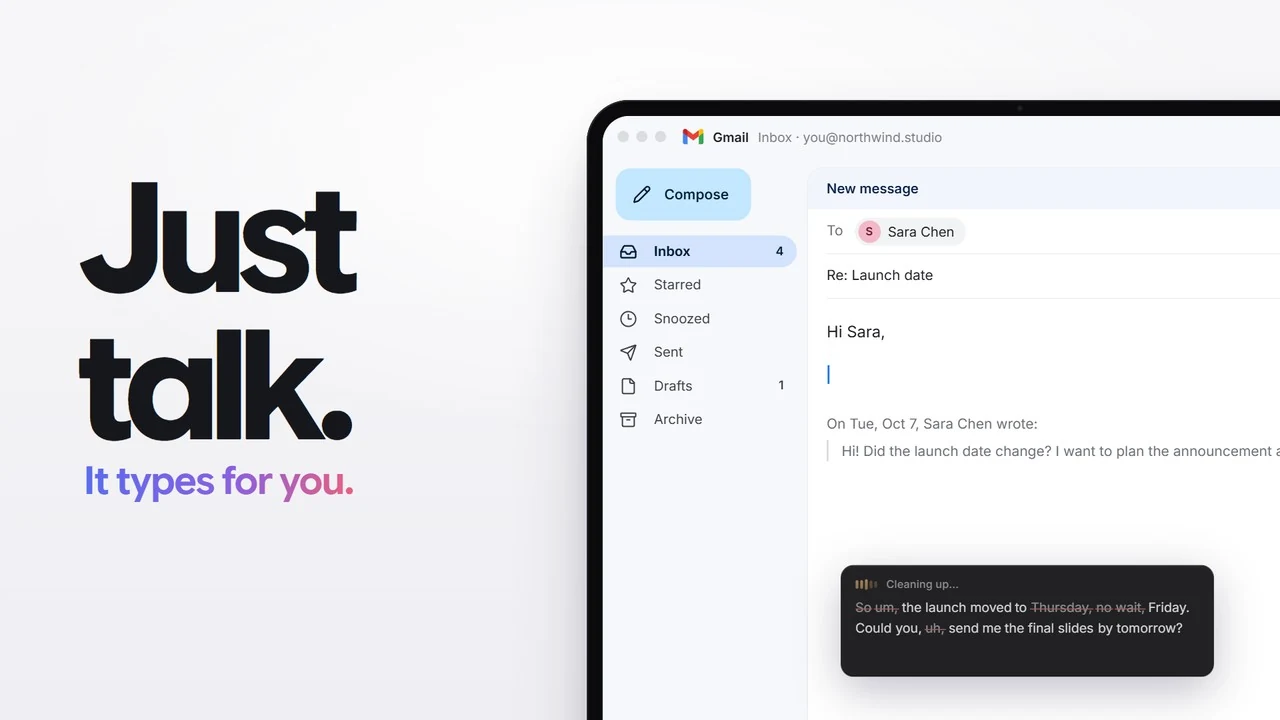
Often you do not need to. Models read rough, spoken text well, so "um" and a restarted sentence rarely change the answer. Cleanup helps when the text is going somewhere people read it, or when you change your mind mid-sentence.
- AI cleanup is off until you turn it on. Then it runs on its own shortcut (dictation keys plus Shift) or on every dictation. SpeakoFlow Mini, the 795 MB model we trained for this, runs locally, removes filler, fixes grammar and follows spoken edits such as "scratch that", so "make it ten, actually, eleven" comes out as eleven. It handles English for now; any other local or cloud model can do the job instead. How the cleanup rules work is in how dictation cleanup works.
- Generate with Flow is off by default (Settings, Dictation). Start a dictation with "Hey Flow" and describe what you want written, and the finished text is pasted instead of your words. "Hey Flow, write a prompt asking a coding agent to add rate limiting to the upload endpoint" works, but it is a general writing feature, not a prompt specialist.
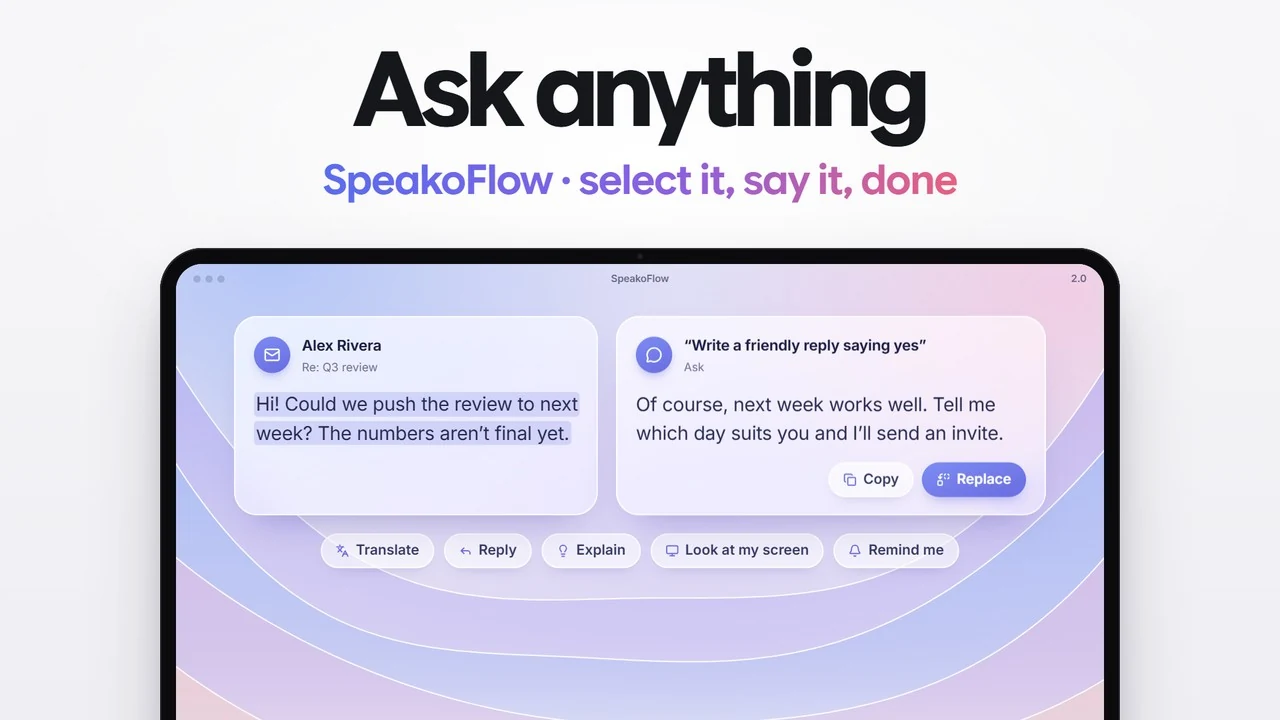
- Ask on selected text works on anything you can select. Highlight an error in your terminal or a draft prompt, hold the ask keys and say "explain this" or "make this shorter". The answer appears in a card, and you can copy it, insert it at the cursor or replace the selection.
Where does your voice go when you dictate a prompt?
With the default local models, nowhere: speech is transcribed on your computer unless you choose a cloud speech service. Prompts often hold source code, client details or unreleased plans, so this matters more than it does for a shopping list.
- Speech to text: local by default. Version 2.0 added optional cloud services (ElevenLabs, Deepgram, OpenAI, Groq, Mistral, Azure AI Speech, OpenRouter, plus Amazon Transcribe from 2.1.0), and if you pick one, your audio goes to that service.
- Cleanup and Ask: sent only to the provider you choose, which can be local (SpeakoFlow Mini, the built-in llama.cpp engine, Ollama or LM Studio).
- No telemetry, no analytics, no account. API keys are kept in your system keychain. The README lists everything that can leave your computer.
The prompt itself still goes to ChatGPT, Claude or Cursor when you send it. Local dictation keeps your voice out of one more company's servers; it does not change what the AI tool receives.
How does SpeakoFlow compare with Wispr Flow for prompting?
SpeakoFlow is free, open source and transcribes locally; Wispr Flow is a paid cloud service that needs no setup and also runs on phones. Both type into any app on the desktop.
| SpeakoFlow | Wispr Flow | |
|---|---|---|
| Price | $0 | Free up to 2,000 words a week on desktop, then $15 a month ($12 a month billed yearly) |
| Where speech is transcribed | Your computer, unless you choose a cloud service | Wispr's cloud |
| Works offline | Yes | No |
| Platforms | Windows, macOS, Linux | Mac, Windows, iOS, Android |
| Open source | Yes, MIT | No |
| Old or low-powered laptop | Local models need some hardware; cloud speech is an option | Hardware matters little, the cloud does the work |
Where Wispr Flow wins: it has phone apps, it works without choosing models, and it runs well on old hardware because transcription happens in the cloud. If that is you, it is a reasonable choice.
Two features that would help prompting are on SpeakoFlow's roadmap and not in the app yet: dictation tuned for agentic coding, and help turning a description into a solid prompt. If a dedicated prompt mode matters most, OpenLess (AGPL) has an "AI-prompt mode" that turns loose speech into structured prompts, though it mainly uses cloud speech recognition. More free options are in the best free and open-source Wispr Flow alternatives, and the full head-to-head is in SpeakoFlow vs Wispr Flow.
Frequently asked questions
Does voice dictation work in Claude Code and other terminals?
Yes. SpeakoFlow types wherever your cursor is, so with the terminal focused your words land at the Claude Code prompt. Read the text before you press Enter, the same as you would with anything you typed.
Can SpeakoFlow write the prompt for me?
Partly. Generate with Flow takes a spoken instruction that starts with "Hey Flow" and pastes finished text, so you can ask it to write a prompt. It is a general writing feature. Dedicated help for writing prompts is on the roadmap and not in the app yet.
Do I need to pay or create an account?
No. SpeakoFlow is free and open source under the MIT license, with no account, telemetry or analytics. If you choose a cloud speech or AI provider, you add your own API key and that provider's pricing applies.
Does it work offline?
The dictation does. Speech is transcribed by a local model by default, and AI cleanup can run locally with SpeakoFlow Mini or another local model. ChatGPT, Claude and Cursor still need the internet, so offline dictation mostly matters for privacy and for local models.
Can I dictate prompts in languages other than English?
Yes. Parakeet is the default for English, Nemotron covers 28 languages with automatic detection, and Whisper covers 99. SpeakoFlow Mini, the cleanup model, handles English only for now; another local or cloud model can do cleanup in other languages.
Is there a phone version?
No. SpeakoFlow runs on Windows, macOS and Linux only. If you prompt mostly from a phone, Wispr Flow has iOS and Android apps.
Disclosure: I build SpeakoFlow, so it is the example here. October update: new 2.0 shortcuts per platform, cleanup on its own key, Ask on selected text, and a Wispr Flow comparison with sourced prices.
Say the whole prompt.
SpeakoFlow types into any app, including your AI tools, and transcribes on your computer by default. Free and open source.
Windows, macOS and Linux. MIT licensed. No account, no telemetry.